
Add Overlay to Image
Overlay or superimpose a logo, watermark, or second photo onto your image — drag it into position, fine-tune opacity and scale, and blend it in with professional modes. Everything renders live in your browser, with full transparent PNG support and nothing ever uploaded.
What is an Image Overlay?
Image Overlay: An image overlay is the process of superimposing a secondary graphic — a logo, watermark, or second photograph — onto a base image using alpha channel compositing. This non-destructive technique blends both layers together while preserving the original file, and is commonly used for brand protection, digital watermarking, and creative photo effects.
- Non-destructive layer compositing
- Alpha channel transparency
- Brand protection & watermarking
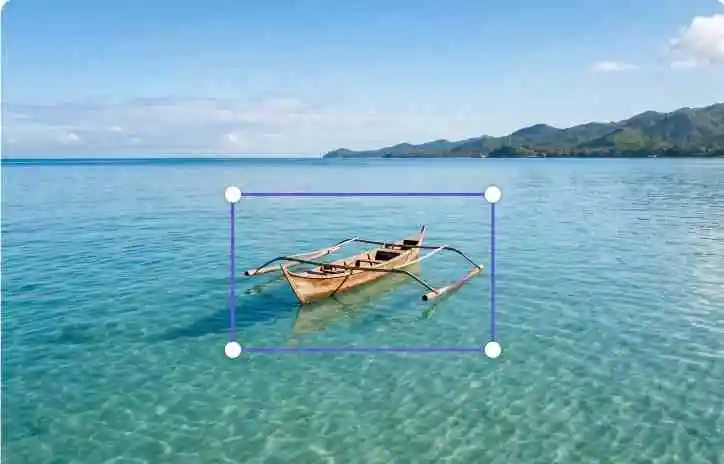
How to add an overlay or logo to an image
1. Upload base image
Select the main photo you want to overlay or superimpose something onto. JPG, PNG, and WebP are all supported.
2. Add your overlay
Click 'Add Overlay Image' and choose your logo, watermark, or second photo. A transparent PNG gives the cleanest result.
3. Position and transform
Drag the overlay into place, resize it using the corner handles, or use the 'Align' tab to snap it to the center or any edge.
4. Adjust blend and opacity
Open the 'Blend' tab to lower the opacity for a subtle watermark look, or apply a blend mode like Multiply or Screen to fuse it into the photo.
5. Export and download
Pick your output format and download the finished, full-resolution image straight to your device.
Professional overlay tools, right in your browser
Live On-Canvas Controls
Drag, resize, and rotate every overlay directly on the image using professional-grade handles — see the exact result before you export, not after.
Advanced Blend Modes
Blend a logo, watermark, or photo into the background with Multiply, Screen, Overlay, or Darken modes, so it looks composited in, not pasted on top.
Multi-Layer Engine
Stack multiple logos, watermarks, or transparent PNG overlays, reorder them freely, and control the opacity of each layer independently.
Keyboard Shortcuts
Nudge a layer into place with the arrow keys, resize it with a shortcut, and hit delete to remove it instantly — no reaching for the mouse for every small adjustment.
Smart Snapping
Snap any overlay to dead-center or to any edge in one move using the built-in 3x3 alignment grid, instead of eyeballing the position by hand.
Lossless Export
Download your finished composition at its original resolution and format, with no forced watermark or branding added by us.
Why use an image overlay tool?
Photography & Brand Protection
Add a transparent watermark or logo across your portfolio before sharing it on social platforms, so your photography can't be reused without credit.
Marketing & E-commerce
Apply 'Sale' badges, promotional stickers, or brand logos across a batch of product photos — fast enough to prep an entire store catalog in one sitting.
Creative & Aesthetic Composites
Layer light-leak, snow, bokeh, or dust-texture PNG overlays onto a photo, or blend two images together with Multiply and Screen modes for a genuinely artistic composite.
Editing Without Photoshop
Superimpose one photo on another, layer two images together, or drop text over a picture — the everyday edits people usually open Photoshop for, done free in the browser.
Image Editing Glossary
Alpha Channel
A color component that represents the degree of transparency, or opacity, of a pixel. It's essential for ensuring a logo or watermark overlay has a clean, invisible background instead of a visible box.
Blend Mode
A mathematical rule that determines how two layered images mix their pixel values — for example, the 'Multiply' mode darkens the base image wherever the overlay is dark, while 'Screen' lightens it.
Client-Side Processing
The execution of code directly inside the user's web browser rather than on a remote server. It's what lets an image overlay tool add a watermark or logo with zero upload time and zero exposure of the original file.
Image Superimposition
The general term for placing one image directly over another so both remain visible. 'Overlay' and 'superimpose' describe the same operation — 'overlay' emphasizes the layer being added, while 'superimpose' emphasizes the two images merging into one.
Watermark
A logo, name, or repeating pattern layered over an image, usually at low opacity, to identify its source or discourage unauthorized use. Watermarks are typically applied as a semi-transparent PNG overlay.
Technical Capabilities & Specifications
| Supported Input Formats | JPG, PNG, WebP |
|---|---|
| Supported Output Formats | JPG, PNG, WebP (Exports in Original Resolution) |
| Max Safe Canvas Size | Up to 8192×8192 pixels (~67 Megapixels) |
| Available Blend Modes | Normal, Multiply, Screen, Overlay, Darken, Lighten |
| Core Processing Engine | HTML5 Canvas API (Strict Client-side Execution) |
How our Privacy Architecture Works
Cloud-based editors need you to upload your files to their servers before you can even see a preview. PIXNVO doesn't — every overlay you add is processed entirely inside your device's local memory, using a strict client-side architecture.
That's possible because we build directly on your browser's native HTML5 Canvas API. No network request is ever triggered while you position, blend, or export an overlay.
- Processing occurs entirely within the HTML5 Canvas API.
- No fetch() or XHR requests are initiated during image edits.
- Blob Object URLs are revoked immediately to prevent memory leaks.
- Image data never persists in cookies, localStorage, or remote databases.
Frequently Asked Questions
Explore more image tools
Crop Image in Circle →
Crop any photo into a perfect circle with a transparent background — ideal for profile pictures and avatars.
Compress Image to 100KB →
Shrink an image down to exactly 100KB to meet strict upload or file-size limits, without leaving your browser.
Compress JPG →
Reduce JPEG file size while preserving visual quality.